
Format Factory Image Converter: JPG, PNG, WebP, HEIC & More
Every output button in the Image panel, confirmed by hand — plus what to do with HEIC photos, since the app handles them differently than most people expect.
Every image output button in the app
One real limitation worth knowing upfront: HEIC — the format iPhones save photos in by default — works as a source format you can convert from, but there's no direct HEIC output button. If you need HEIC specifically as your target format, Format Factory isn't the tool for that direction; JPG or PNG output covers the common use case of making iPhone photos readable everywhere instead. See our JPG conversion guide for the exact HEIC-to-JPG steps.
Get Format Factory 5.22.0.0
~163 MB, 64-bit Windows only, published by Free Time Software Technology Co., Ltd.. Go to the download page for the official link, the exact byte size to check it against, and a safe-download checklist.
Only 64-bit Windows 7 / 8 / 10 / 11 are supported.
Converting many images at once
Add multiple image files to the Image panel in one go — a full folder of vacation photos, screenshots, or scanned pages — and set the target format once; every file in the batch converts with the same settings. This is the standard way to turn a folder of iPhone HEIC photos into JPGs a Windows photo frame or older app can actually read.
Adjusting size and orientation
Output settings for image conversions include JPG and WebP quality controls (both default to 90 in our tested install), which you can lower for smaller file sizes. Resize and rotate options are available in the same destination-configuration dialog used for video, letting you standardize dimensions across a whole batch before conversion.
More image conversion questions
Which format should I use for photos I'll share online?
JPG remains the safest universal choice for photos — every platform, device, and browser handles it without exception. WebP produces smaller files at similar quality but has narrower support in older software; use it when you control both ends of the exchange (your own website, for example).
Does converting an image lose quality?
Converting between lossy formats (JPG to WebP, for example) can introduce a small additional quality loss on top of what the source already has, since both formats compress the image data. Converting from a lossless format (PNG, BMP) to a lossy one (JPG) is a one-way quality trade — keep a PNG master copy if you might need to convert to something else again later.
Can I convert an entire folder of photos automatically?
Yes — select every file in the folder when adding to the Image panel, and Format Factory queues and converts them all with the same output settings, which is the standard workflow for a batch of vacation or event photos.
What about AVIF?
AVIF is a newer, highly efficient image format gaining browser support, and it's a format people increasingly search for a converter for. We couldn't confirm AVIF as either a source or output option in the Image panel's format list during our own testing of the current build — if AVIF specifically is what you need, verify support directly in the app before relying on it, since our confirmed list above (WebP, JPG, PNG, ICO, BMP, GIF, TIF, TGA) doesn't currently include it.
Basic conversion, start to finish
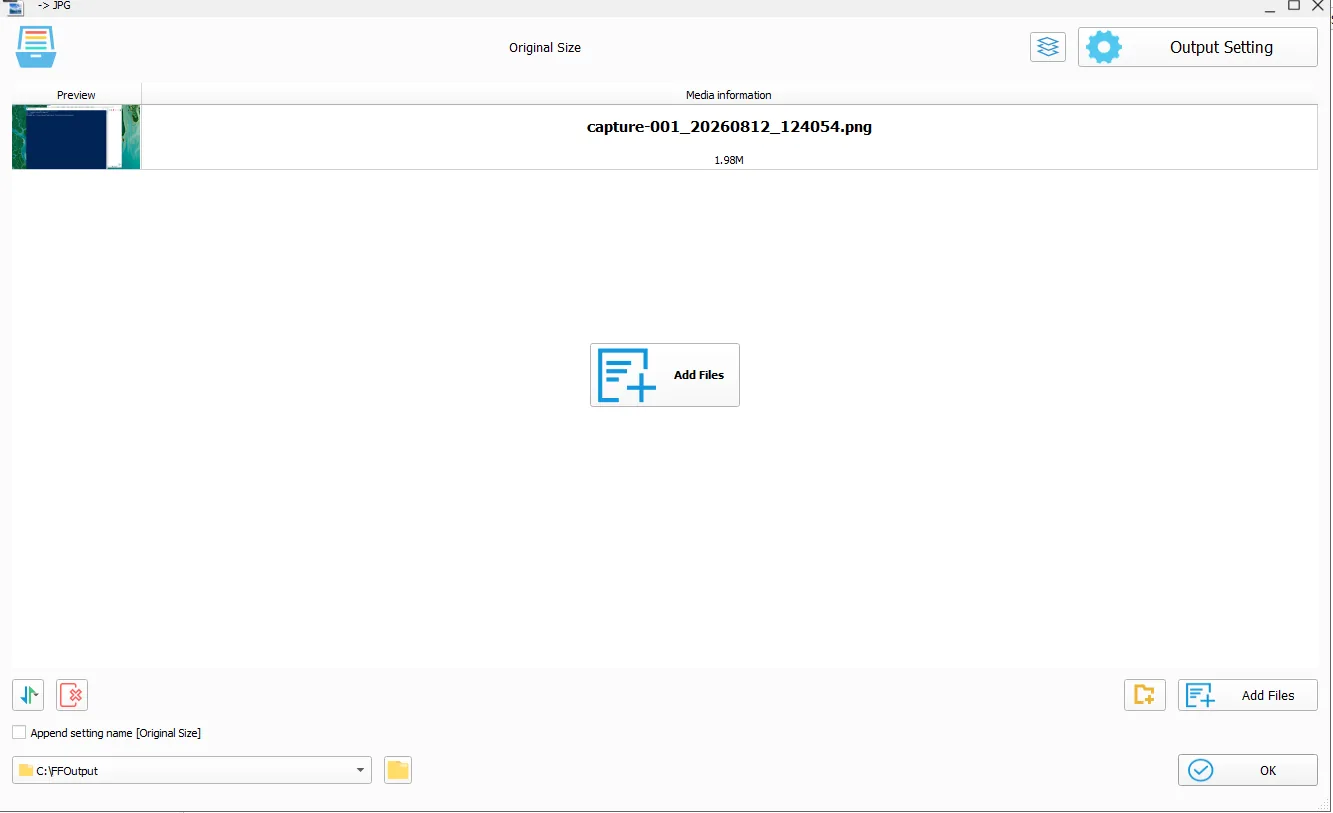
Open Format Factory, click the Image category in the left panel, then choose your target format button — for example, “→PNG”. Click “Add File” and select one or more source images; every format in our confirmed list works the same way. Optionally open “Configurar Destino” to adjust quality, resize, or rotate before converting. Pick your output folder and click Start — the queue moves from “Waiting” to “Completed” once each file finishes, which for a typical photo takes well under a second based on our own testing.
Transparency and alpha channels
PNG, WebP, GIF, and ICO all support transparency, while JPG, BMP, and TIF generally don't handle an alpha channel the same way. Converting a transparent PNG logo to JPG, for example, fills the transparent area with a solid background color rather than preserving see-through pixels — if your source has transparency you need to keep, stick to converting between PNG, WebP, GIF, or ICO rather than to JPG or BMP.
The short version
Eight confirmed output formats (WebP, JPG, PNG, ICO, BMP, GIF, TIF, TGA), no direct HEIC output but full HEIC source support, batch conversion for whole folders at once, and quality/resize/rotate controls in the destination configuration dialog. JPG and PNG cover the vast majority of real-world conversion needs people bring to this tool.
If your specific need falls outside that list — RAW camera files or AVIF specifically — we've flagged those gaps honestly above rather than implying support that our own testing couldn't confirm.
Keep your originals until you're sure
Especially with a large batch conversion, don't delete the source images until you've spot-checked several converted files — opening a handful from different points in the batch is enough to catch a settings mistake before it affects every photo rather than after.
The practical takeaway
For everyday image conversion — JPG, PNG, WebP, and reading HEIC — this covers the job without needing a separate specialized tool. For the edge cases (AVIF output, RAW camera input), we've been upfront that we couldn't confirm support rather than leaving you to discover a gap the hard way.