Format Factory Online: Convert Files Free, Right in Your Browser
The same conversion workflow as the Windows app — no installer, no upload, nothing to sign up for. Pick a format, drop your file, download the result.
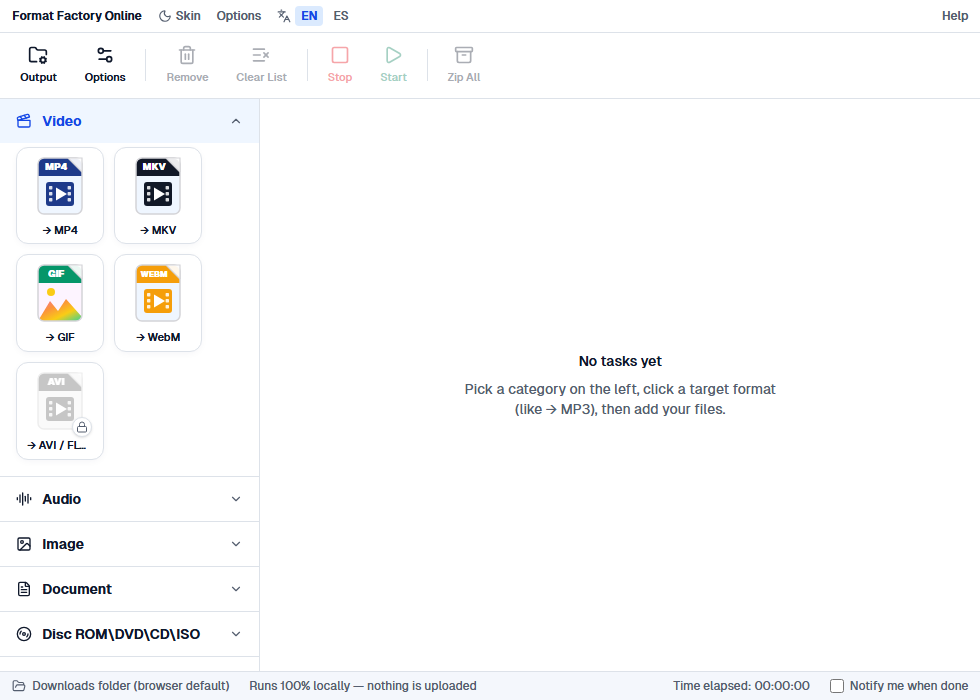
Audio, video, and image — the formats people search for most
Video
Convert MP4, MOV, MKV, AVI, WebM, FLV, WMV, and more into MP4, WebM, MKV, or an animated GIF. You can also pull just the audio out as MP3, M4A, or WAV — with trim, resolution, and quality controls before you convert.
Audio
Convert MP3, WAV, FLAC, AAC, OGG, M4A, Opus, WMA, and AIFF files into MP3, WAV, FLAC, AAC, OGG, M4A, or Opus, with bitrate and sample-rate options.
Image
Convert JPG, PNG, WebP, AVIF, BMP, and GIF images into JPG, PNG, WebP, or AVIF, with a quality slider and resize-to-max-dimensions option.
Three steps, same as the desktop app
Pick a category on the left — Video, Audio, or Image — and click the target format you want, just like in the desktop app.
Drag your file into the window (or click Add Files). Nothing is uploaded — conversion happens right there in your browser tab.
Click Start, then download the result. Converting several files? Download them all at once as a .zip.
Nothing is ever uploaded — here's why we can say that
Format Factory Online doesn't have a conversion server. Instead, it ships the same FFmpeg engine the desktop app uses — compiled to WebAssembly — straight to your browser, along with dedicated codecs for image formats. Your file is decoded, converted, and re-encoded using your own device's CPU, inside the browser tab, and never crosses the network.
You don't have to take our word for it. Open your browser's developer tools (F12), switch to the Network tab, and convert a file — you'll see the page load once, and then nothing at all while the conversion runs.
This also means there's no file-size limit imposed by a server, no queue shared with other visitors, and no account collecting your conversion history — the only limit is your own device's memory.
Which one you actually want
Use Format Factory Online if…
You need to convert a file right now, on any device — Windows, Mac, Linux, Chromebook, even a tablet.
You don't have permission to install software: a work laptop, a shared computer, a school computer.
You're converting audio, video, or images — the three types it currently supports.
You want to see for yourself that nothing is uploaded — open your browser's developer tools, watch the Network tab, and convert a file. No request ever leaves your machine.
Use the Windows app if…
You need PDF, Word, Excel, or other document conversion — not available in the online version yet.
You're ripping a DVD/Blu-ray or working with disc images (ISO/CSO).
You're batch-converting a lot of large video files and want full native speed, multi-core, and GPU acceleration.
You want the full toolset: watermark removal, subtitle burning, text-to-speech, and the rest of the desktop app's utilities.
Common questions about the online version
Is Format Factory Online really free?
Yes — no account, no watermark, no file-count or file-size limit beyond what your own device's memory can handle. There's nothing to unlock and nothing to pay for.
Do I need to install anything?
No. It runs in the browser tab you're already using — Chrome, Edge, Firefox, or Safari, on Windows, Mac, Linux, or Chromebook. There's no download, no admin rights needed, and nothing left behind when you close the tab.
Are my files uploaded to a server?
No. Every conversion runs locally in your browser using WebAssembly (a compiled build of the same FFmpeg engine the desktop app uses, plus dedicated image codecs). Your file is decoded, converted, and re-encoded entirely on your own device. You can verify this yourself: open your browser's DevTools, go to the Network tab, and convert a file — you won't see it leave your machine.
Is this the same as the Format Factory Windows app?
It's an independent, unofficial companion tool built to match the desktop app's look and workflow, covering the audio, video, and image conversions people search for most. It doesn't (yet) cover PDF/Office documents, disc/ISO ripping, or the desktop app's other utilities — for those, use the free Windows app.
Why is it slower than the desktop app for large video files?
Running inside a browser tab means the conversion engine gets one CPU core and a JavaScript sandbox instead of the desktop app's native, multi-core, GPU-accelerated path. For typical clips and everyday files it's plenty fast; for a large batch of long videos, the Windows app will finish faster.
What happens to my file if I close the tab mid-conversion?
It's simply gone — nothing was ever uploaded anywhere to resume from. Reopen the page and start again; your original file on disk is untouched either way.
Convert your first file now
No install, no sign-up, nothing uploaded. It's already open in the same tab you're reading this in.